-1.png?width=150&height=40&name=InfoPlus-Primary-Logo%20(1)-1.png)
3PL Billing Rules are used to define how activity data (from WMS activity or parcel invoices) is identified and quantified, for producing lines on an Invoice for your 3PL customers. See the Overview of 3PL Billing for an overview of how Billing Rules are used with Customer Invoice Templates to produce Invoice Worksheets.
Create a Billing Rule
- Access the “Billing Rule” table. Two ways:
From the Dashboard: Click the “Account Management” tab, click the “3PL Billing Setup” App, then click the “Billing Rule” Table.
From the Quick Actions shortcut: Press a dot (period) on your keyboard, then select “Billing Rule” from the list of Quick Actions. - Click the Create New button in the top right. The Creating New Billing Rule window appears.
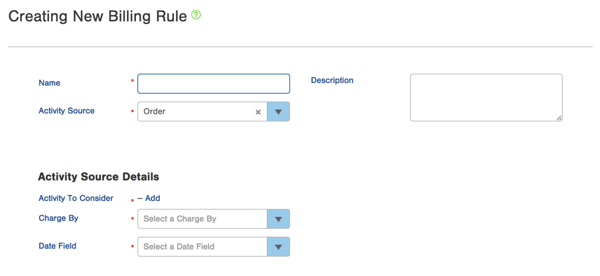
- Enter a Name for the Billing Rule.
- Best practice is to use a consistent naming convention for all of your Billing Rules. For example, you may wish to prefix all of your Billing Rule names with the Activity Source that they are based on, then the Charge By field, then a description of the activity criteria. If you have some rules that are specific to a particular LOB, you may wish to start the name with that LOB's identifier. Some examples using this scheme may be:
- Orders - Sum of Quantity - Rush service types
- Orders - Count of Orders - non-parcel carriers
- Job Time - Sum of Seconds - all
- LOB1 - Cartons - Count of Cartons - excessive weight
- Best practice is to use a consistent naming convention for all of your Billing Rules. For example, you may wish to prefix all of your Billing Rule names with the Activity Source that they are based on, then the Charge By field, then a description of the activity criteria. If you have some rules that are specific to a particular LOB, you may wish to start the name with that LOB's identifier. Some examples using this scheme may be:
- Select the Activity Source, which controls what type of data that this Billing Rule is based on.
- When this Billing Rule runs, it will perform a query on this activity table, using the criteria you specify in the Activity to Consider field below, combined with the LOB on the Customer Invoice Template the rule is running for, and the dates as determined by the billing period.
- Based on the Activity Source you choose, you will be able to specify the Activity Source Details in the fields below.
- Optionally enter a Description of this Billing Rule, to serve as a note for you and your team, to document the purpose of this rule.
- Set the Activity To Consider. This tellings the Billing Rule which records to pull from the Activity Source table.
- Click Add and a popup opens.
- Enter your search criteria the same way you search for data anywhere in InfoPlus. You usually don't need to add an LOB or dates. InfoPlus adds them for you when a Customer Invoice Template runs this rule for a billing period.
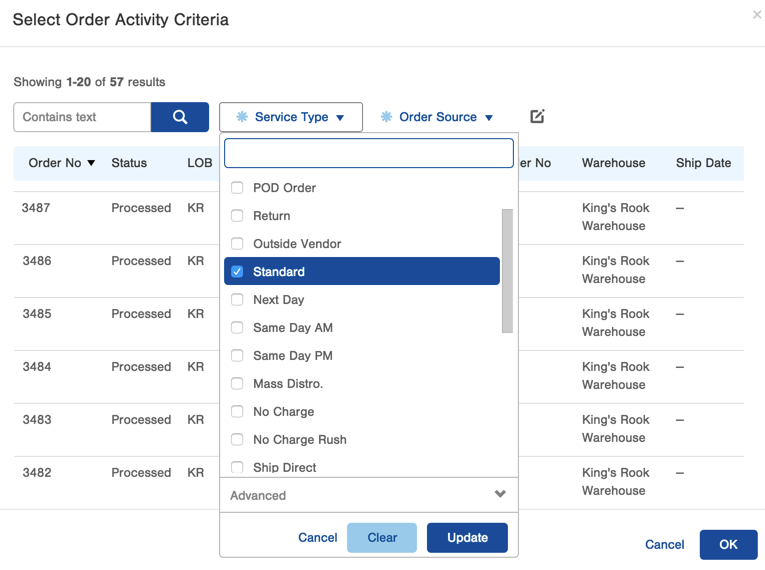
- To bill by fulfillment plan, filter on Fulfillment Plan. You can use this field when your Activity Source is Orders, Order Lines, or Cartons. Activity records created before this field was added have a blank Fulfillment Plan.
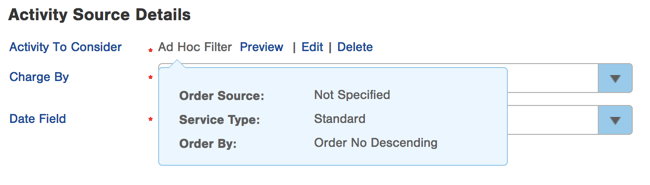
- Click OK. The words Ad Hoc Filter appear on the form.
- Enter your search criteria the same way you search for data anywhere in InfoPlus. You usually don't need to add an LOB or dates. InfoPlus adds them for you when a Customer Invoice Template runs this rule for a billing period.
- Manage your criteria any time:
- Click Preview to see a summary of the criteria you chose.
- Click Edit to reopen the popup and change your criteria.
- Click Delete to remove the filter.
- Click Add and a popup opens.
- For the Charge By field, select the field from the Activity Source table that you want this Billing Rule to perform its calculation upon.
- For example, with the Activity Source of Orders, you can choose Count of Orders, Sum of Cartons Shipped, Sum of Freight Amount, Sum of Line Items, etc. The other Activity Sources have other options available, based on the fields in their tables.
- For Date Field, select the date field from the Activity Source table that you want this Billing Rule to use when it queries for activity to include in its calculation.
- For example, with Activity Source of Orders, you can specify if you want to include orders based on their Create Date in Infoplus or their Ship Date. Then, when an Invoice Template is being executed for a particular Billing Period, it will only include Orders whose specified date is within the range as determined by the Billing Period.
- When selecting "Order" for the Activity Source, the Billing Rule's "ShipDate" maps to the InfoPlus Order's "Shipping Label Date" field.
- Best practice is to be consistent across all of your Billing Rules with which Date Fields you use.
- When you are finished, click Save. The Billing Rule will be available for use on the Line Items under a Customer Invoice Template.