
Is This What I'm Looking For?
Use this article to convert an InfoPlus Script or outside integration that uses your Shopify access token. Shopify now requires access tokens that expire, so InfoPlus is switching every Shopify connection, and anything still using the old token will stop working.
Most customers don't need to do anything. If InfoPlus contacted you about a script or integration, or you find one using the checks in Before You Begin, this article walks you through converting it.
This article only covers converting existing scripts and integrations. It doesn't cover writing new scripts or connecting a new Shopify store.
These steps are for InfoPlus on desktop.
Before You Begin
Check whether this applies to you
This article is for you if:
- Your script uses
utils.httpRequestwith anX-Shopify-Access-Tokenheader. - Your script reads
accessTokenfrom a Shopping Cart Connection. - An outside system reads the access token from the InfoPlus API and uses it to call Shopify.
If none of these apply, you don't need to do anything. InfoPlus switches your connection for you, and your orders and inventory keep syncing.
Check your timing
- Scripts that read
accessTokenfrom a Shopping Cart Connection stop working for everyone when the update is released. - Scripts with an access token typed into them keep working until your connection switches. InfoPlus switches connections in small groups. Once yours switches, the old token stops working right away.
- Shopify requires every connection to switch by January 1, 2027. After that date, nothing that uses the old token works. Update your scripts before the InfoPlus release so nothing breaks along the way.
You can't see the access token anywhere in InfoPlus anymore, including the API. Your scripts use shopifyHttp instead. It calls Shopify for you without showing the token.
Required access
- Script table and Shopping Cart Connection table
- The table your script runs on, such as the Order table, so you can test it
- API Log table, if you're checking an outside integration
- Your Shopify admin, so you can check your results
Have on hand
- Your Shopify Shopping Cart Connection ID. You'll find it in the ID column of the Shopping Cart Connection table.
InfoPlus Support can answer general questions about scripting. For help with a specific script, submit a Pro Services request.
What's Different with shopifyHttp
Read this before you rewrite your script. shopifyHttp works differently from the old utils.httpRequest call.
REST calls must become GraphQL
Removing the token isn't enough. shopifyHttp only works with Shopify's GraphQL Admin API. Any REST call (a URL ending in .json, such as /orders/123.json) must become a GraphQL query (to read data) or mutation (to change data). You don't need a store URL or API version in your script. InfoPlus handles both.
What comes back
shopifyHttp returns Shopify's response as a JSON string. Use JSON.parse() to read it. The data section holds the results. An errors section appears if Shopify couldn't run the request. Mutations also return userErrors, such as an invalid order ID.
A failed mutation doesn't make the script fail. Had Error still shows False, so your script needs to log errors and userErrors itself.
Shopify uses global IDs
GraphQL names records with global IDs, such as gid://shopify/Order/123456789 or gid://shopify/Customer/123456789. Build them from the Shopify number, like "gid://shopify/Order/" + shopifyOrderId.
For orders, use the SHOP-ID value from Extra Order Data. Don't send the SHOP-ADMIN_GRAPHQL_API_ID value. InfoPlus saves it in all capital letters, and Shopify IDs are case-sensitive.
tagsAdd only adds tags
REST replaced all of an order's tags. GraphQL's tagsAdd only adds tags and keeps the ones already there. If your old script removed tags by overwriting them, use tagsRemove too.
Steps
Update a script
-
Find the scripts that call Shopify.
Go to the Script table. Look for scripts whose code containsX-Shopify-Access-Token,myshopify.com, oraccessToken. -
Copy the script.
Make your changes in the copy. Keep the original until the copy passes testing. -
Remove the old Shopify call.
Delete theutils.httpRequestcall to Shopify. Also delete any access token typed into the script or read from the Shopping Cart Connection. -
Write the GraphQL query or mutation.
Rewrite each REST call as GraphQL. Look up field names in Shopify's GraphQL Admin API reference. For IDs and tags, see What's Different with shopifyHttp. -
Send the request with shopifyHttp.
CallshopifyHttp.runGraphQLQuery(). Put your connection ID first, then the query, then any variables wrapped inJSON.stringify(). In a Shopping Cart Connection Order script, leave out the ID.shopifyHttp.runGraphQLQuery(123, query, JSON.stringify(variables))
-
Log the results.
Read the response withJSON.parse(). Addutils.log()lines that record anyerrorsoruserErrors, and what the script did. -
Test the copy on one record.
For a Record script, go to the table for the script's record type, such as the Order table. Check the box next to one test record. Select Bulk Run Script from the Actions menu, and choose your copy. For a Shopping Cart Connection Order script, use Test a Shopping Cart Connection Order script instead.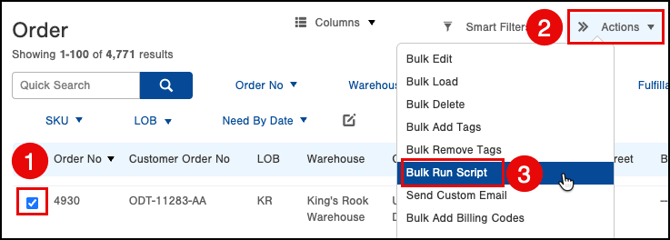
-
Check the result.
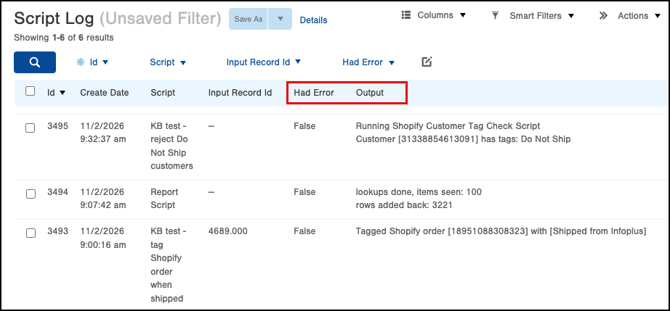
Check the Output column in the Script Log table for your log messages. If your script changes data, confirm the change in Shopify. -
Switch to the new script.
Update the Trigger or Scheduled Plan to run the copy. Then deactivate the original.
Example: Confirm your script can reach Shopify
This quick test works in any script type. It looks up your store's name and writes it to the Script Log. Replace 123 with your connection ID.
var SHOPPING_CART_CONNECTION_ID = 123; // the ID of your Shopify Shopping Cart Connection
var response = JSON.parse(shopifyHttp.runGraphQLQuery(SHOPPING_CART_CONNECTION_ID, "query { shop { name } }"));
utils.log("Connected to Shopify store: " + response.data.shop.name);
Example: Tag a Shopify order when it ships
Most affected scripts tag Shopify orders. This is a Record script with a Record Type of Order. It runs from a Trigger on shipped orders from your Shopify connection.
Before: the old way
This stops working once your connection uses expiring access tokens.
// OLD - do not use. The access token is pasted into the script.
var shopifyOrderId = getOrderExtraData(order, "SHOP-ID");
utils.httpRequest({
"method": "PUT",
"url": "https://my-store.myshopify.com/admin/api/2024-01/orders/" + shopifyOrderId + ".json",
"headers": ["X-Shopify-Access-Token: shpat_xxxxxxxxxxxx", "Content-Type: application/json"],
"body": JSON.stringify({ "order": { "id": shopifyOrderId, "tags": "Shipped from InfoPlus" } })
});
After: the new way with shopifyHttp
Replace 123 with your connection ID.
var SHOPPING_CART_CONNECTION_ID = 123; // the ID of your Shopify Shopping Cart Connection
var TAG = "Shipped from InfoPlus";

function getOrderExtraData(order, code)
{
var extraDataList = order.extraOrderData;
if(extraDataList != null)
{
for(var i=0; i<extraDataList.size(); i++)
{
var extraData = extraDataList.get(i);
if(extraData.code == code)
{
return(extraData.value);
}
}
}
return(null);
}

var shopifyOrderId = getOrderExtraData(order, "SHOP-ID");
if(shopifyOrderId == null)
{
utils.log("Order [" + order.orderNo + "] does not have a Shopify order id, skipping.");
return;
}

var mutation = "mutation ($id: ID!, $tags: [String!]!) { tagsAdd(id: $id, tags: $tags) { userErrors { field message } } }";
var variables = { "id": "gid://shopify/Order/" + shopifyOrderId, "tags": [TAG] };
var response = JSON.parse(shopifyHttp.runGraphQLQuery(SHOPPING_CART_CONNECTION_ID, mutation, JSON.stringify(variables)));

if(response.errors || response.data.tagsAdd.userErrors.length > 0)
{
utils.log("Shopify returned an error for order [" + order.orderNo + "]: " + JSON.stringify(response));
}
else
{
utils.log("Tagged Shopify order [" + shopifyOrderId + "] with [" + TAG + "]");
}
What changed
- The access token and store URL are gone.
SHOPPING_CART_CONNECTION_IDtells InfoPlus which Shopify connection to use.- The REST PUT to
/orders/{id}.jsonbecame the GraphQLtagsAddmutation. - The order ID became a global ID:
"gid://shopify/Order/" + shopifyOrderId. - The variables are passed with
JSON.stringify(), and the script logserrorsanduserErrors.
Test a Shopping Cart Connection Order script
This type of script runs while an order imports, so you test it by importing one order.
- Set the script on your connection.
Go to the Shopping Cart Connection table and open your Shopify connection. Set the Script field to your copy. - Place a test order in Shopify.
- Open Import Orders.
With your Shopify connection open, select Import Orders from the Actions menu. You don't select an order first. - Choose how to import.
Select By specific order ids and In the Foreground, then click Next.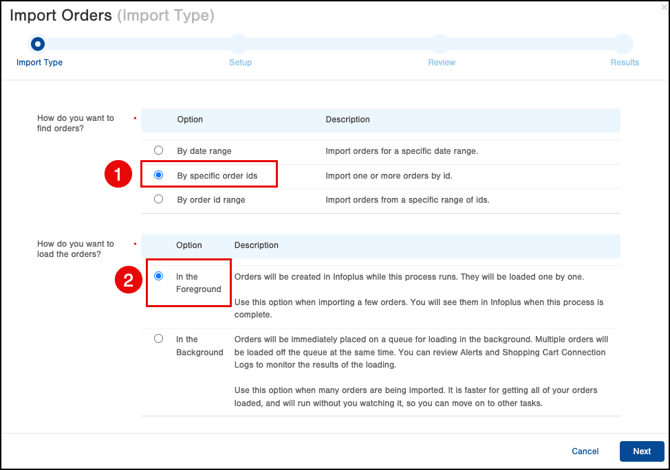
- Enter the order name.
Type the name exactly as it shows in your Shopify Orders list, such as #1001. Don't use the long number from the order's web address.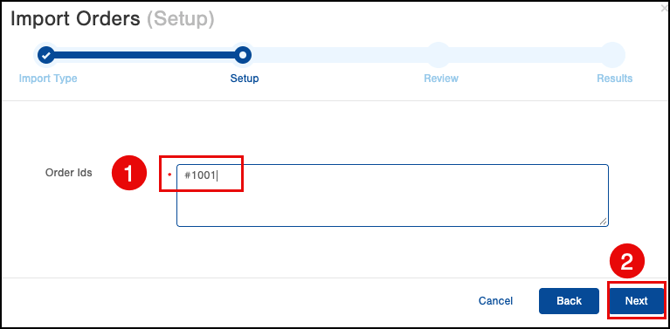
- Run the import.
Click Next, then click Submit. - Cancel the test order.
If your script didn't reject the order, it imported like any other order. Cancel it if it was only a test.
Update an API integration
- Check the API Log.
Go to the API Log table. Look for requests where the Path column includesshoppingCartConnection. - Ask the integration's developer how it uses the data.
- Choose the fix that matches.
- It only reads connection details, like name, status, or Line of Business: No change is needed. The
accessToken,accessCode, andnoncefields are gone from the response. All other fields stay the same in every API version. - It uses the token to call Shopify: Give it its own Shopify access, such as a custom app created in Shopify's Dev Dashboard. See Shopify's custom apps guide.
- It uses Shopify only to act on InfoPlus data, like tagging orders after they ship: Move that work into an InfoPlus Script that uses
shopifyHttp. Follow the steps in Update a script.
- It only reads connection details, like name, status, or Line of Business: No change is needed. The
What You Should See
- In the Script Log table: a new row for your script. Had Error is set to False, and your log messages are in the Output column. Check your log messages too, since a failed mutation still shows False.
- In Shopify: the change your script made, such as a new tag on the order. If you used
tagsAdd, the order's other tags are still there. - After a test import: the Import Orders results show whether the order imported. If your script rejected it, you see a message like: Order '#1001' rejected by Script '[your script name]' for reason: [your reason].
- For an API integration: Shopping Cart Connection requests still work. They no longer include
accessToken,accessCode, ornonce.
Troubleshooting
Errors from shopifyHttp show in the Script Log table. Filter for Had Error = True and check the Error column.
If you see "shopifyHttp.runGraphQLQuery requires a Shopping Cart Connection id in this script":
Why this happens: The script left out the connection ID, and it isn't a Shopping Cart Connection Order script.
How to fix it: Add your connection ID first, like shopifyHttp.runGraphQLQuery(123, query).
If you see "Shopping Cart Connection [123] was not found.":
Why this happens: No connection has that ID, or the person running the script can't access its Line of Business.
How to fix it: Check the ID in the Shopping Cart Connection table. Then check that person's Line of Business access. For a script run by a Trigger, check the person who owns the Trigger.
If you see "Shopping Cart Connection [123] is not a Shopify connection.":
Why this happens: The ID belongs to a different shopping cart, such as WooCommerce.
How to fix it: Use your Shopify connection's ID from the Shopping Cart Connection table.
If you see "The shopifyHttp.runGraphQLQuery variables must be a valid JSON object string.":
Why this happens: The variables were sent as a JavaScript object, not a JSON string.
How to fix it: Wrap them in JSON.stringify(), like shopifyHttp.runGraphQLQuery(123, query, JSON.stringify(variables)).
If Shopify's response has an "errors" section:
Why this happens: Shopify got the request but couldn't run it. This is often a typo or a field that doesn't exist.
How to fix it: Log the full response with utils.log(JSON.stringify(response)). Compare your query to Shopify's GraphQL Admin API reference. If the error says access was denied, contact InfoPlus Support.
If you see "[API] Invalid API key or access token (unrecognized login or wrong password)":
Why this happens: An old script is still sending the access token. After your connection switches, the old token stops working.
How to fix it: Update the script to use shopifyHttp. Follow the steps in Update a script.
If Import Orders says "An order with this id was not found in the Shopping Cart.":
Why this happens: You entered the long number from the order's web address, not the order name.
How to fix it: Enter the order name exactly as it shows in your Shopify Orders list, such as #1001.
Next Steps
- If you're new to writing scripts, see Introduction to InfoPlus Scripts.
- If a script isn't working the way you expect, see Troubleshooting InfoPlus Scripts.
- If you need other script tools, like
utils.logorutils.rejectOrder, see Utils Object - Functions Available. - If you need to search your API requests, see Using the API Log table.
- If you need to reconnect a Shopify store, see Connect InfoPlus to Your Shopify Site.