
Is This What I’m Looking For?
Use this article when you need to mark inventory as Frozen, Damaged, or Available. For example, you might put a lot on hold or release a hold. Frozen and Damaged inventory counts as Unavailable and won’t allocate to orders, so the wrong status can block orders or let bad stock ship. This article does not cover other ways to hold inventory, like a Holding location or a future Distribution Date.
Before You Begin
- Required access: Change Inventory Status in the Warehouse Apps.
- Required setup: To change only part of the inventory in a location, move that inventory to its own location first. If you change the status of only some inventory in a location, you won’t be able to move any other inventory into that location. See Modern Mobile Floor App: Inventory Relocation.
- Materials on hand: The location or SKU you want to change, ready to scan or enter.
Steps
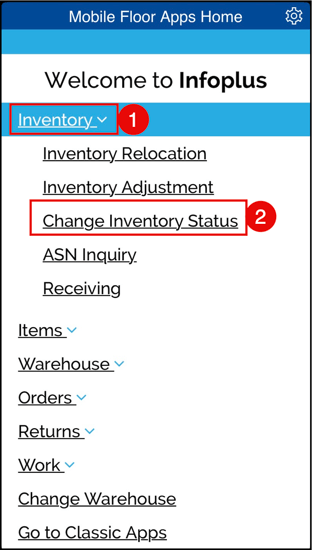
- On a mobile device, log into the InfoPlus App. From the Dashboard, select Inventory → Change Inventory Status.
- If needed, select your Warehouse.
- Scan or enter the Location or SKU. If you type it in, press Enter.
- If the SKU is in one location, go to Step 4.
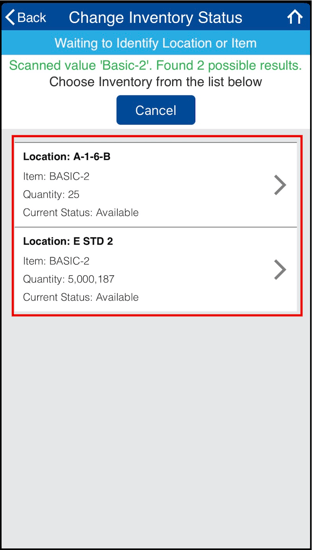
- If the SKU is in more than one location (like the example below), select the location to change. Only that location's inventory changes.
- If the location holds more than one SKU, select the item to change.
- Select the new Status.
Choose Available, Damaged, or Frozen. The inventory’s current status won’t show as an option. To release a hold, select Available.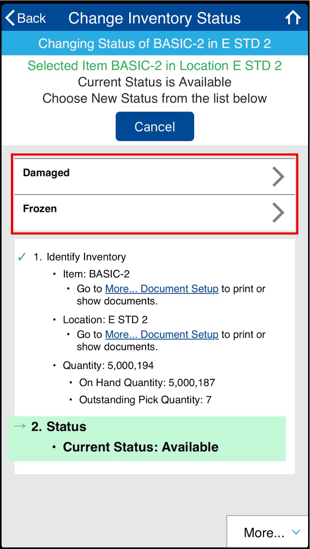
What You Should See
A green bar at the top of the screen confirms the change. The new status applies only to the location you chose.
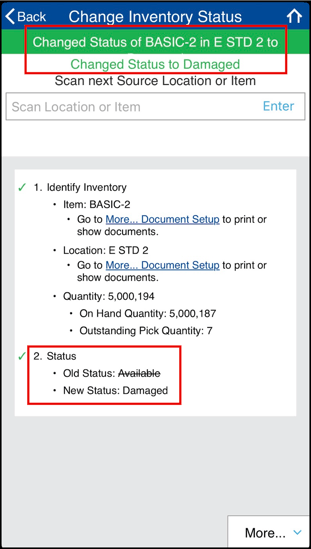
- Frozen or Damaged: The quantity moves to Unavailable on the Item record and won’t allocate to orders.
- Available: The quantity can allocate again.
- To check a location’s status later: Use the Location Inquiry app.
The status stays with the inventory if you move it to another location.
Troubleshooting
If you see “Location status different” when you move inventory:
Why this happens: The location you’re moving to already holds inventory with a different status. A location can’t take inventory with a different status than what’s already there.
How to fix it: Move the inventory to an empty location, or to one that holds inventory with the same status. You can also change the status of one set of inventory so they match.
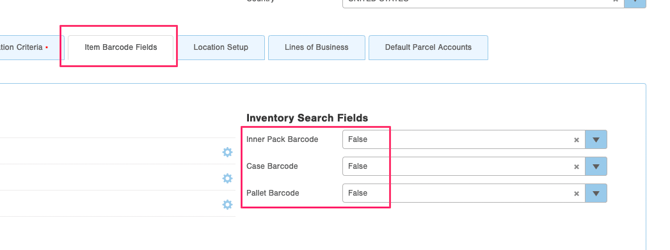
If the app doesn’t find an item when you scan an inner pack, case, or pallet barcode:
Why this happens: By default, the app doesn’t search the Inner Pack Barcode, Case Barcode, or Pallet Barcode fields.
How to fix it: Go to the Warehouse table. On the Item Barcode Fields tab, turn on the fields you want the app to search.
Next Steps
- If you need to decide between Frozen status, a Holding location, or a future Distribution Date, see About Putting Inventory on Hold.
- If you need to check what’s in a location and its current status, see Location Inquiry Mobile Floor App.
