-1.png?width=150&height=40&name=InfoPlus-Primary-Logo%20(1)-1.png)
Is this what I'm looking for?
- Use these steps when you want to research shipping costs for a single order before it ships. You pick an order, enter package details, and see what each carrier would charge.
- This article does not cover Rate Shopping, which is an automated feature that selects the cheapest or fastest carrier during the fulfillment process. If you want InfoPlus to choose a carrier for you automatically, see How to Rate Shop in InfoPlus.
Disclaimer - Rate shop estimates outside the Ship Station are for planning purposes only and may not reflect final carrier rates or error messaging. The Ship Station remains the source of truth for confirmed rates at the point of shipment. We'd recommend treating any rates shown outside that flow as estimates until they're finalized there.
Before you Start
- At least one parcel carrier is integrated with your site
- Your role has the Orders table and Lookup Parcel Rates process permissions enabled
There are two ways to look up rates:
From an Order - Ship To, Ship From, and parcel details are auto-filled from the order
Standalone - You enter all details manually. This option is useful when you want to compare rates without an existing order.
How to Lookup Parcel Rate With an Order
1. Open the Order
Press the period key (.) and search for the Orders table. Then select the Order you want to look up rates for. You can only look up a rate for one order at a time.
2. Start the Lookup
From the Actions menu, select Lookup Parcel Rates. The Setup screen opens.
3. Fill out the Setup screen
Carrier Information
| Field | What to do |
| Parcel Account | You can select a carrier to see only their rates, or leave it blank to see rates for all carriers. |
| Service | With a Parcel Account selected, you can select a service type. Leave blank to see all of the service types for that account. |
| Ship Date | Enter your planned ship date, or leave blank to default to today. |
Parcel Information
- Carton Type - If you have Carton Types setup in Infoplus, select the one you want to use and the dimensions will be entered automatically.
- If no Carton Type is selected, manually enter the Length, Width, Height, and Weight.
Confirm the Ship To and Ship From
- Ship To - This defaults from the Order's Ship To information and you can change it, if needed.
- Ship From - This defaults from the Warehouse address assigned to the Order and you can change it, if needed.
Click Submit
Once everything is filled out, click Submit. The results screen loads with available rates by service.
4. Review the Results
Caution - The Lookup Parcel Rates result is an estimate, labels are not purchased through this process.
What You'll See
The results screen shows available rates by service. See the Troubleshooting section below for some common reasons why some services are not visible.
- Retail Freight Amount - What you'd pay if you ship through the carrier’s store or website instead of a scheduled contract pickup.
- Published Freight Amount - What you'd pay if you have a contract for regularly scheduled daily pickups. This is also the amount shown in the Freight field on the Orders table.
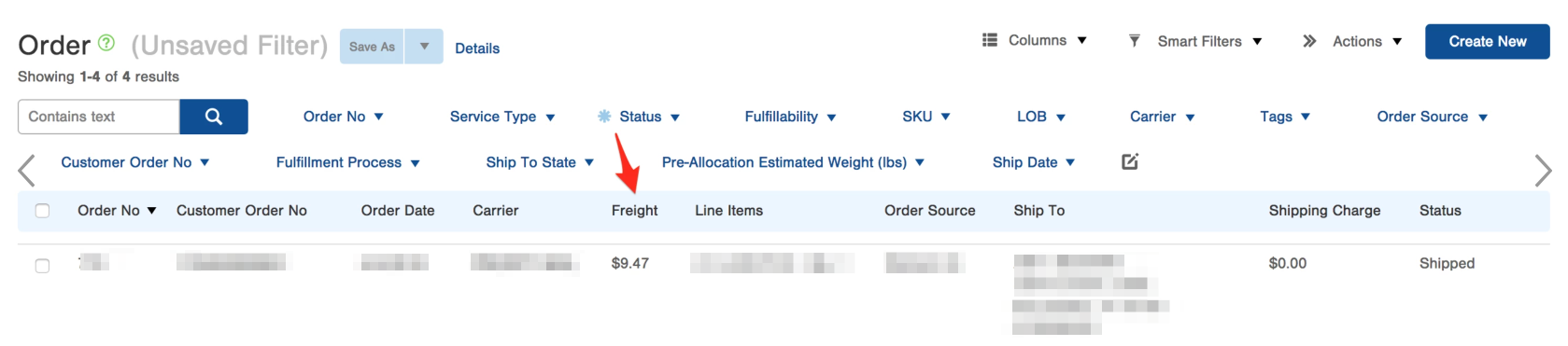
- Charged Freight Amount - What you'll actually be charged, including any customer discounts. This field may be blank or not be shown. If you're a 3PL, you may have chosen not to display the freight discount you receive.
Best Practice - After an order ships, the actual amounts are recorded on the Shipment table. You'll find the same three columns there to verify what was charged.
How to Look Up Rates Without Selecting an Order
Use this option when you want to compare rates without starting from a specific order.
1. Start the Lookup
Press the period key (.) and search for Lookup Parcel Rates.
2. Fill out the Setup window
These are the same fields as the order-based lookup (Step 3 above), but you will need to enter each one.
- Use the drop-downs for Parcel Account and Service, and then enter the Ship Date
- Select the Carton Type or manually enter the Length, Width, Height, and Weight
- Enter the full Ship To address, including all required fields (marked with an asterisk)
- For the Ship From address, select a warehouse to have the remaining fields be filled automatically
Once everything is filled out, click Submit. The results screen loads with available rates by service.
4. Review the Results
The results work the same way as the order-based lookup. Look at What You'll See above for rate definitions.
Caution - The Lookup Parcel Rates result is an estimate, labels are not purchased through this process.
Troubleshooting
- Not seeing a carrier you expected? Confirm the carrier is integrated with your Infoplus site.
- Charged Freight Amount is blank? Your account may be configured to hide freight discounts, which is common for 3PL operations. Check your settings or contact your administrator.
- A service you expected isn't showing? That service may not be available for the destination, date, or package dimensions you entered. A few common examples:
- Package exceeds carrier weight limits - If you leave Parcel Account blank and select a Carton Type with a weight over 150 lbs, standard UPS and FedEx networks won't return rates or may show an error.
- Carrier doesn't service the destination - If you select USPS and your Ship To is an international destination USPS doesn't cover, no rates will return and an error may appear.
- Don't have access to Lookup Parcel Rates? Confirm both the Orders table permission and the Lookup Parcel Rates process permission are enabled on your Role. Press the period key (.) and search for Role Management, select your Role, and look under Manifest Setup.
- Why is one rate so much lower than the others? If one rate is abnormally low, the carrier may have only quoted part of your shipment. Check for any error messages from the carrier. Incorrect dimensions on one package can cause the carrier to leave that package out of the rate quote.