-1.png?width=150&height=40&name=InfoPlus-Primary-Logo%20(1)-1.png)
Is this what I'm looking for?
Use this article when you need to understand how the Jobs module works end to end. Jobs is InfoPlus’s light manufacturing and pre-kitting module. It lets you consume input items, assemble them, and produce finished output items while keeping inventory accurate throughout the process.
This article does not cover Kit on Demand (KOD). KOD assembles kit items during the normal order picking process and does not use the Jobs module. See Create a Kit for KOD instructions.
Before You Begin
Before you work with Jobs, confirm the following:
- Permission level: You need access to the Jobs table and associated apps in InfoPlus.
- Fulfillment plan: A fulfillment plan must already be configured. The system uses it to allocate and pick component items when a job starts.
- Input items: The component items (inputs) for your job must exist in inventory.
- Job Recipe (optional): If you plan to run the same job repeatedly, set up a Job Recipe first to save setup time.
How Jobs Work
Each job moves through a defined set of phases. The sections below describe what happens at each phase and link to the task-specific article for that step.
Create a Job
You can create a job from scratch using the Create New button in the Jobs table, or start one from an existing Job Recipe. Job Recipes let you define a repeatable job structure and launch it with a few clicks.
Start a Job
Once a job is created, start it from the action menu. When you start a job, InfoPlus automatically creates an order and a fulfillment process to manage component picking and keep inventory accurate. You can filter for these orders using the Warehouse Service Type value of Job. Don't cancel or unfulfill this order. InfoPlus uses it to track which components went into your kits, so it can list them on international customs forms.
If there are inventory discrepancies or other errors, the job will not start and you will see a notification. Click into the fulfillment process link at the bottom of the job record for details. When the fulfillment process allocates successfully, the job moves to a Started status.
Pick Inputs for a Job
Once the fulfillment process generates successfully, the job appears in the Find Work app. Pick inputs following your normal picking process.
Run a Job
When inputs are picked and ready to assemble, use the Run Job app in the Mobile Warehouse Applications to build the required assemblies. See Run a Job.
It is possible to over-pick inputs, or to have unconsumed inputs remaining after a job runs. If putback is required, the app prompts you to select the quantity and location. If there is no putback, use the Close Putback Work button to close out.
Receive a Job
The final phase is receiving the output item(s) into inventory using the Interactive Receiving app in the Mobile Warehouse Applications. Search by Job when the app prompts for an ASN. Once all assemblies are received into stock, the job updates to a Completed status.
How Kits Built for a Job Show Up on Customs Forms
When you ship a kit built with a Job to another country, InfoPlus lists each component on the customs form instead of the kit SKU. This works the same way as a kit on demand (KOD).
One Output Only
InfoPlus lists components only when the Job has one output. If the Job has more than one output, the customs form shows the kit SKU.
What Gets Sent
Each component is sent with its own quantity, value, weight, country of origin, and commodity code. The kit SKU is not listed.
Where the Data Comes From
Weight and country of origin come from the component item receipts the Job pulled inventory from. You can only set country of origin on an item receipt, so enter it when you receive your components. If a component came from more than one receipt with different values, InfoPlus uses one of them.
Keep the Job's Order Processed or Shipped
When you start a Job, InfoPlus creates an order to pull the components. Keep that order in Processed or Shipped status. If you cancel it, unallocate it, or don't fulfill it, the customs form shows the kit SKU instead. Changing the order, filling it partly, overpicking, or putting items back can make the component data less accurate.
Where You See the Components
The order shows the components the same way a KOD order does. Picking, packing station, and cartonization still show only the kit SKU.
Delete a Job
The steps to delete a job depend on how far along it is. Delete as early in the process as possible. The more records associated with a job, the more complex deletion becomes.
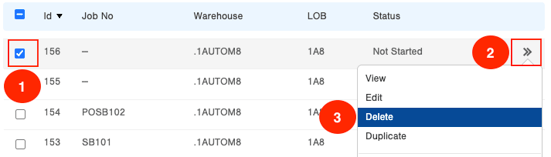
Delete a Not Started Job
Job status must be Not Started to perform these steps
- Go to the Job table
- Check the box for the job to be deleted and use the arrows on the right side to choose Delete.
Delete a Started Job
Before you cancel: If any kits from this Job haven't shipped yet, canceling or unfulfilling the Job's order means their customs forms will show the kit SKU instead of the components.
- Go to the Order table
- Check the box for the order to be cancelled (status can only be Processed). Then click Actions → Unfulfill Orders → Submit → Return to Order.
- Locate the same order and select the box for the order. Then click Actions → Cancel Orders → Submit → Ok.
- If needed, unreceive any item receipts (use Unreceive Item Receipt if needed). If there are no item receipts, move to the next step.
- Go to the Item Receipt table and open the Item Receipt. Then click Actions → Close Item Receipt → Submit → Ok. (This receives 0 and shows the status as Received)
- Go to the Job table and open the job to be deleted (status should be Not Started). Then click Actions → Delete (all associated work is automatically cancelled).
Troubleshooting
I entered a country on my item, but it doesn't show on my customs form. Why?
Why this happens: InfoPlus only uses the country of origin on the item receipt. The Country field on the item record isn't used for customs.
How to fix it: Enter country of origin when you receive your components. To make it a required field at receiving, see Receiving Criteria Scheme.
Next Steps
- Ready to build your first job? See Create a Job.
- Want to set up a repeatable job structure? See Create Job Recipes.
- Need to cancel picking work before canceling a job? See Cancel Work.
- Need to close an Item Receipt? See Unreceive an Item Receipt.
- Shipping kits to another country? See Requirements to Set Up International Shipping.
- Need to require country of origin when you receive? See Receiving Criteria Scheme.